Appearance
How to Set Up a Club Draw
A Club Draw is a great way to encourage community engagement while raising funds to support the running of your club.
Regular draws help clubs cover ongoing costs while creating excitement among members and supporters for the chance to win the growing prize pot.
As the prize pot increases after each draw, it can help build anticipation and strengthen community spirit around the club.
This guide will show you how to:
- Create a new Club Draw
- Configure ticket options
- Publish the draw for supporters to purchase tickets
🎟️ Navigate to Club Draw Setup
To begin setting up a new club draw:
- Log in to your Club Admin Dashboard
- Navigate to Set Up Fundraiser
- Select Ticket Sale
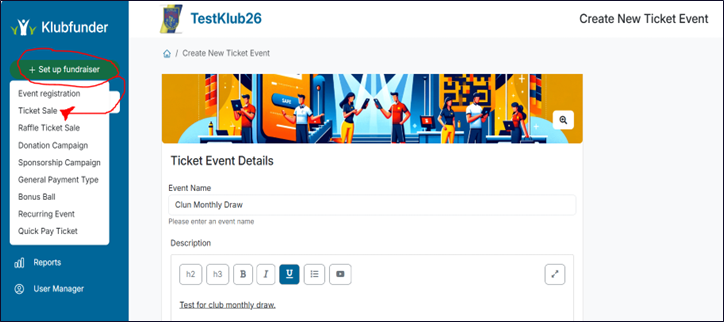
➕ Create a New Club Draw
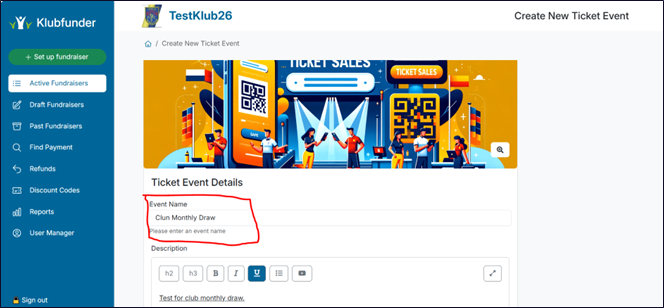
Enter the basic information for your club draw.
Draw Name
Enter the name of the club draw in the field provided.
This is the title supporters will see when purchasing tickets.
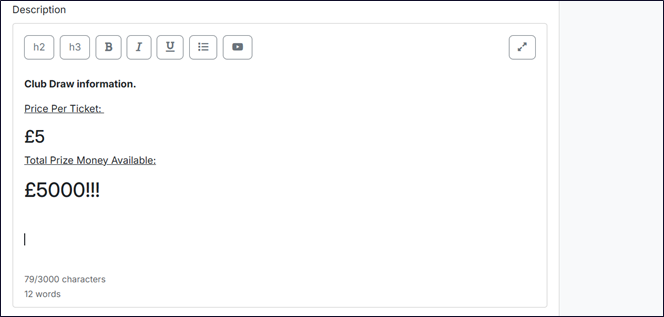
Description
Add a description explaining the draw details.
For example:
- Ticket price
- Prize amount
- How often the draw takes place
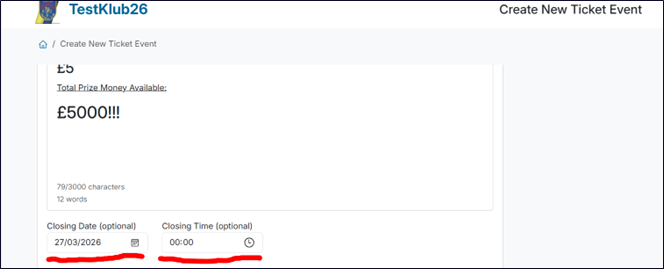
Set Closing Date
Choose the closing date and time for the draw.
This determines when ticket sales will stop before the draw takes place.
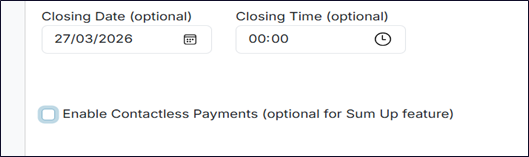
Enable Contactless Payments (Optional)
You can enable contactless payments to allow supporters to purchase tickets using supported contactless payment methods.
Once all details are entered, click Next.
🎫 Configure Ticket Types
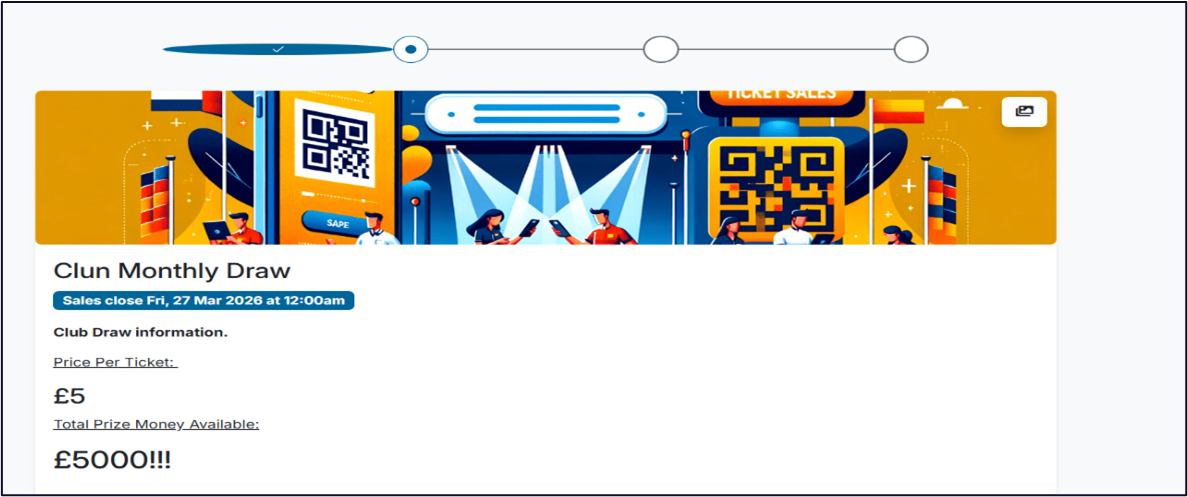
On the next page, you will see a summary of the draw information you entered.
Scroll down to configure the ticket options.
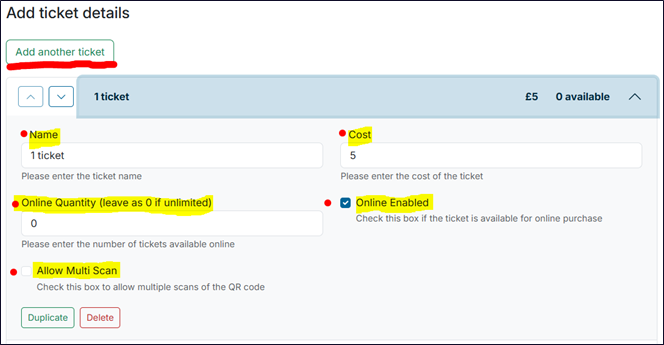
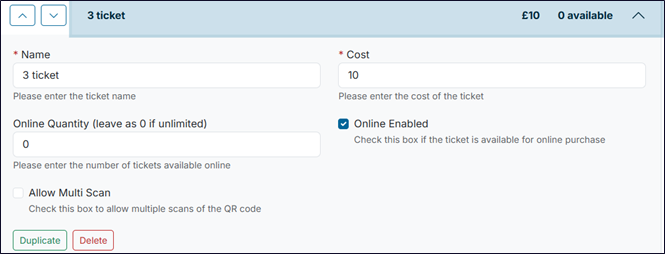
Here you can create one or more ticket types.
For each ticket type you can configure:
- Name – Usually the number of tickets included in the bundle
- Cost – The price for the ticket or ticket bundle
- Quantity per Person – Maximum number of tickets a person can purchase
- Available Online – Allow supporters to buy tickets online
Multi Scan Option
The Allow Multi Scans option allows tickets to be scanned multiple times.
⚠️ This option is not required for Club Draws and should normally remain unchecked.
Creating Ticket Bundles
You can also create ticket bundles.
For example:
| Bundle | Price |
|---|---|
| 1 Ticket | £2 |
| 3 Tickets | £5 |
| 5 Tickets | £8 |
To do this you can:
- Click Add Another Ticket
- Or Duplicate an existing ticket and adjust the details
Once you have finished creating the ticket options, click Next.
📄 Review the Event Summary
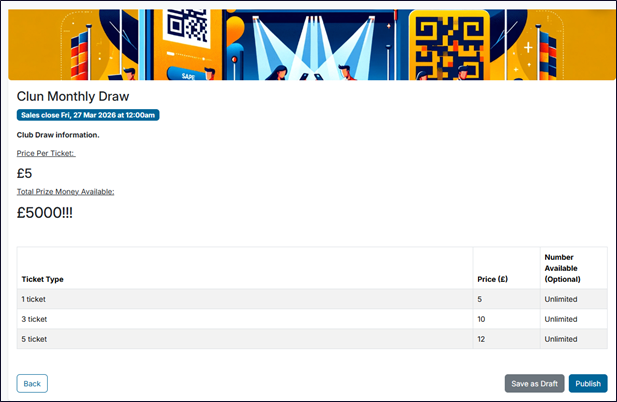
You will now see a summary page showing all of the draw information and ticket types you have created.
Review the details carefully to ensure everything is correct.
🚀 Publish the Club Draw
Once the details have been reviewed and approved by the club admin:
- Click Publish
Your club draw will now be live and available for supporters to purchase tickets.
👀 Viewing and Purchasing Tickets
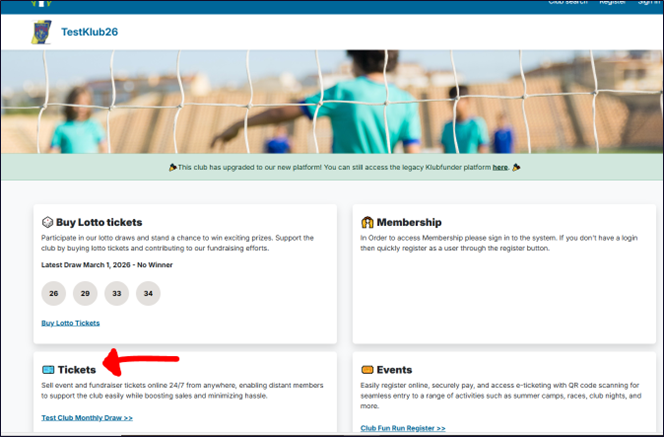
Once the draw is published, it will appear on the public club page.
Supporters can access it by clicking the Tickets section.

🎟️ Purchasing Tickets
Scroll down the page until you find the Club Draw.
Selecting the draw will display the ticket options you created.
Supporters can then:
- Select the ticket bundle they wish to purchase
- Complete the payment process
- Receive confirmation of their ticket purchase
Your Club Draw is now fully set up and ready for supporters to participate.