
Appearance
How to Set Up Tap to Pay for Ticket Sales
Tap to Pay allows your club to accept contactless payments directly on a mobile device — with no additional hardware required.
Using the Klubfunder platform and Stripe integration, admins can enable users to take fast, secure payments for:
- 🎟️ Lotto Ticket Sales
- 🎉 Fundraising Activities
- 🎫 Event Ticket Sales
- ⚽ Match Day Payments
This guide will walk you through how to:
- Set up Tap to Pay
- Create authorised users
- Take payments using a mobile device
💡 What is Tap to Pay?
Tap to Pay enables your club to accept contactless card and mobile payments directly from a smartphone.
This removes the need for:
- Card machines
- Cash handling
- External hardware
All payments are processed securely through Stripe Tap to Pay.
🧭 Getting Started
To begin setting up Tap to Pay:
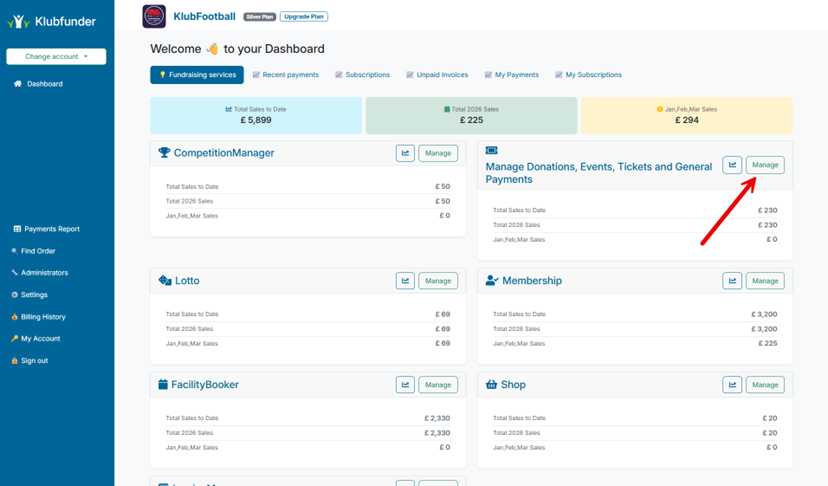
- Log in to your Club Admin Dashboard
- Navigate to:
Manage → Manage Donations, Events, Tickets and General Payments - Open Ticket Sales
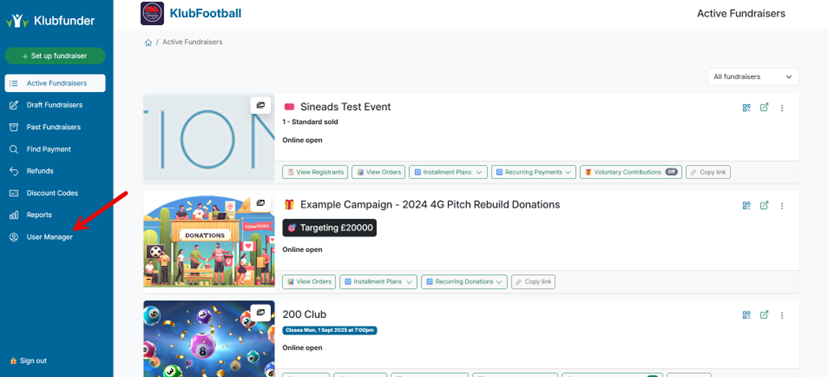
- Select User Manager
💡 Tip
Before setting up Tap to Pay, ensure your Stripe account is connected to your Klubfunder account.
👥 User Manager Overview
The User Manager allows you to control who can take payments.
From this screen, you can:
- Add new payment users
- Assign Tap to Pay or SumUp access
- Manage existing users
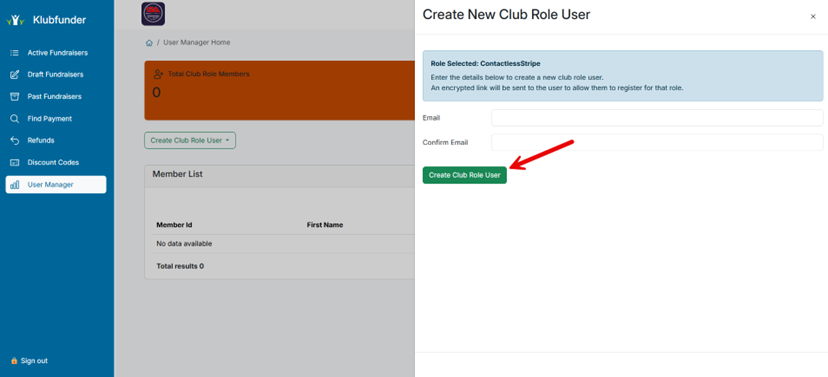
➕ Create a Tap to Pay User
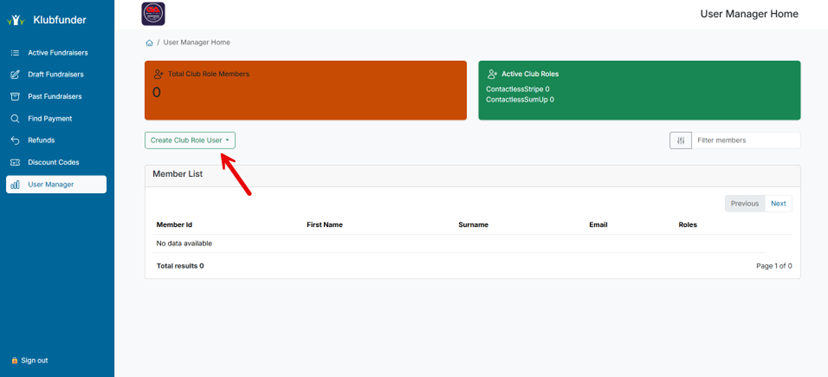
To allow someone to take contactless payments:
- Click Create Club Role User
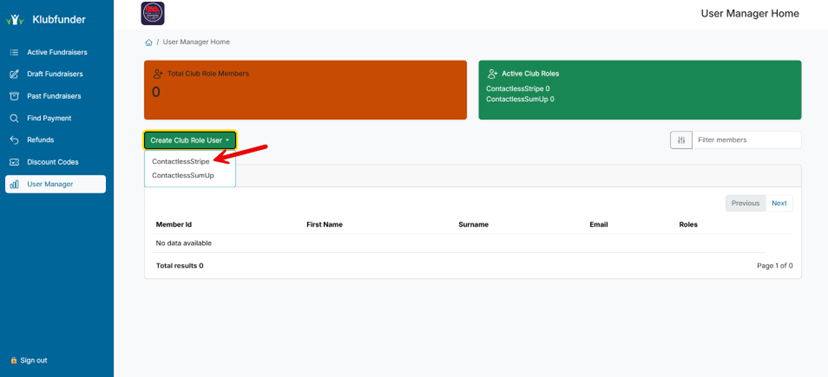
- Select payment method:
- Stripe Tap to Pay (mobile contactless payments)
- Enter:
- Name
- Email address
- Click Create Club User
Once created, the user will appear in the User Manager list.
📱 Taking Payments (User View)
Once a user is set up, they can begin taking payments using the mobile app.
Step 1: Open the App
- Log in to the Klubfunder mobile app
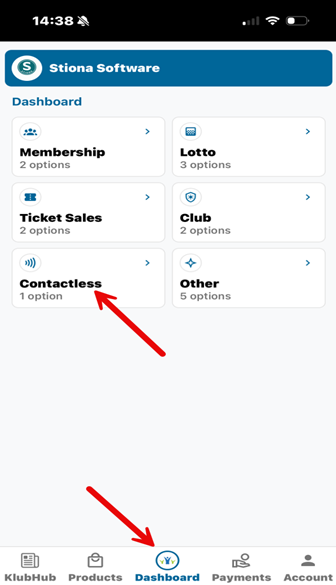
- Navigate to the Dashboard
Step 2: Select Contactless Payments
- Tap the Contactless option
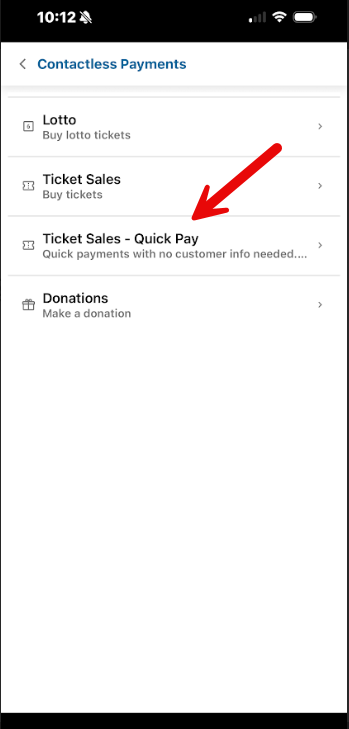
Step 3: Choose Ticket Sales
- Select Ticket Sales
Step 4: Take Payment
The Tap to Pay screen will open.
The customer can:
- Tap their contactless card
- Or use a mobile wallet (Apple Pay / Google Pay)
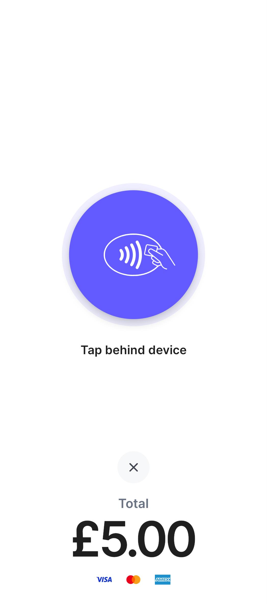
✅ Payments are processed instantly
📩 Receipts are issued automatically (where applicable)
⚠️ Troubleshooting & Tips
If Tap to Pay is not working, check the following:
- 📶 NFC is enabled on the device
- 👤 User is active in User Manager
- 🔗 Stripe account is properly connected
- 📲 Mobile app is updated to the latest version
If issues persist, contact Klubfunder Support.
✅ Summary
You have now successfully:
- Enabled Tap to Pay on your account
- Created authorised users
- Set up mobile contactless payments
Tap to Pay provides a fast, secure, and flexible way to collect payments anywhere — perfect for events, ticket sales, and fundraising activities.